Navigating the TradrLab Workspace
Written By amixrum
Last updated Over 1 year ago
When you log into TradrLab, you'll land in your workspace — the central hub where you create, view, and manage your trading scenarios.
Here’s a quick breakdown of what each part of the interface does:
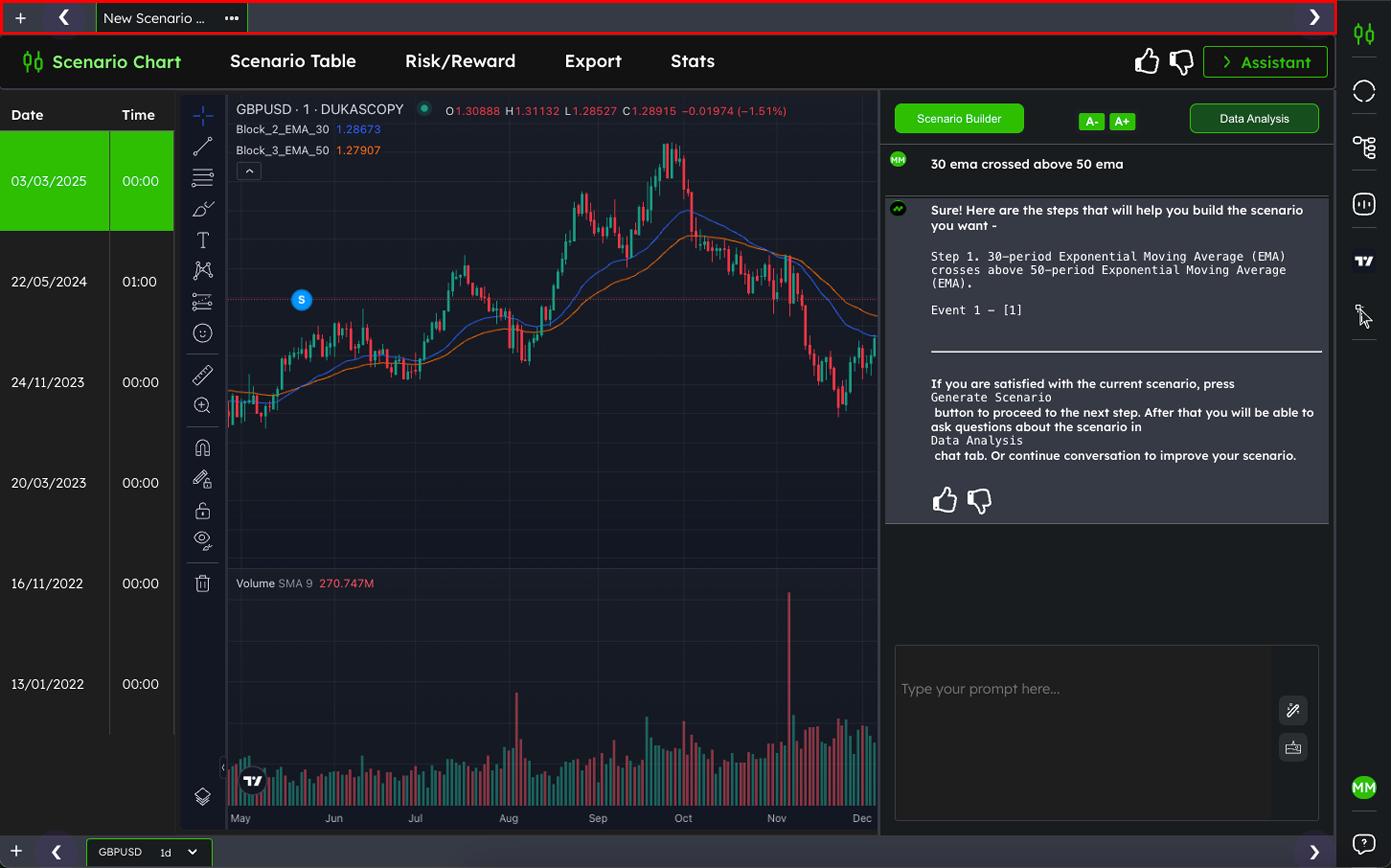
Scenario Tab
This is where all your saved scenarios live. You can view, organise, and manage each one from here — making it easy to jump between different ideas or compare scenarios.
Learn more about the Scenario Tab
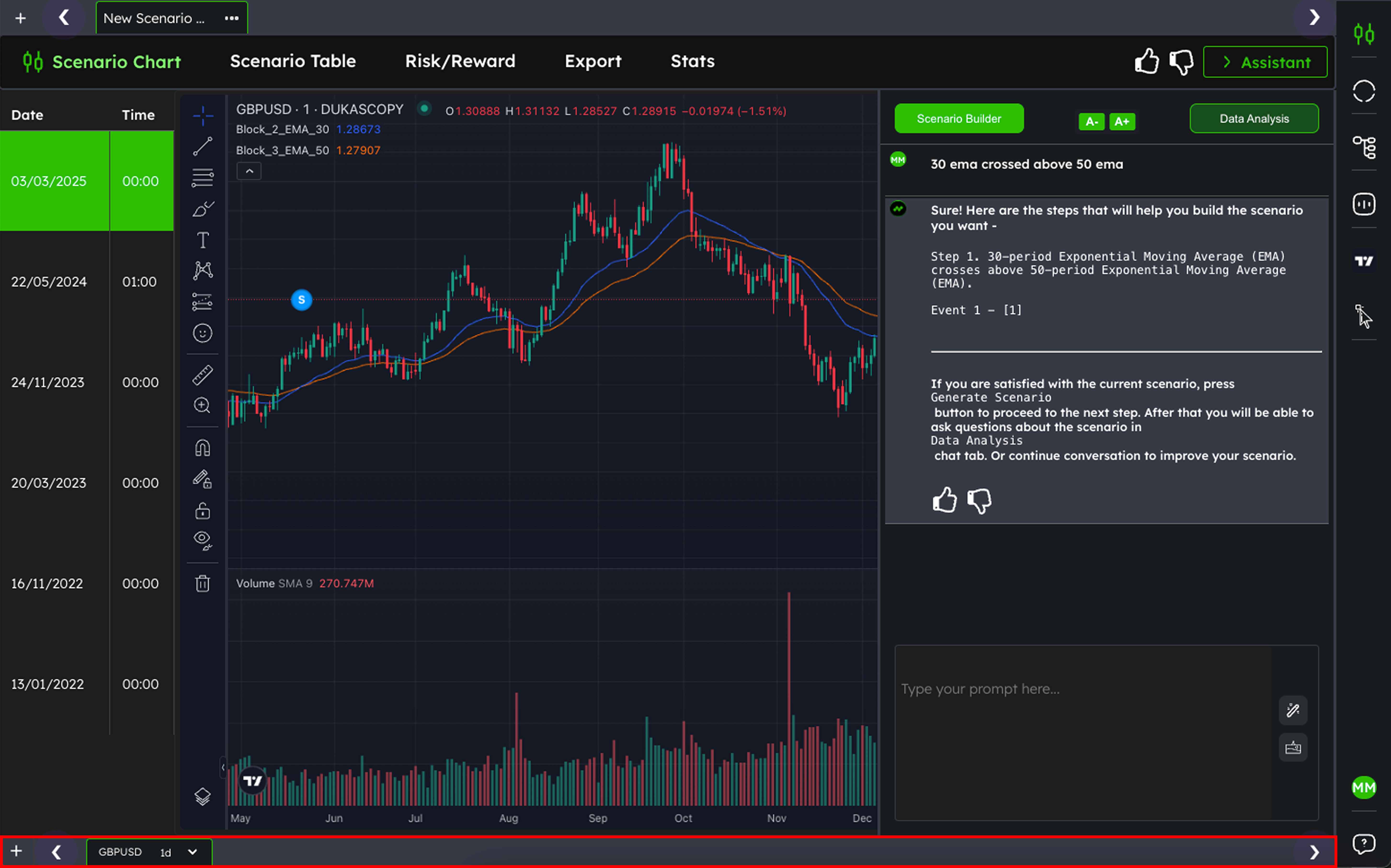
Symbol Tab
This tab lets you switch between different instruments or datasets, so you can run the same scenario across multiple markets. It's useful for comparing performance across assets or for exploring new symbols without rewriting your prompt.
Learn more about the Symbol Tab
Scenario Chat (AI Assistant)
This is the chat window where you communicate with TradrLab’s AI. You can create new scenarios by describing your ideas in plain English, ask follow-up questions, or refine what you’ve already built.
Learn more about the AI Chat
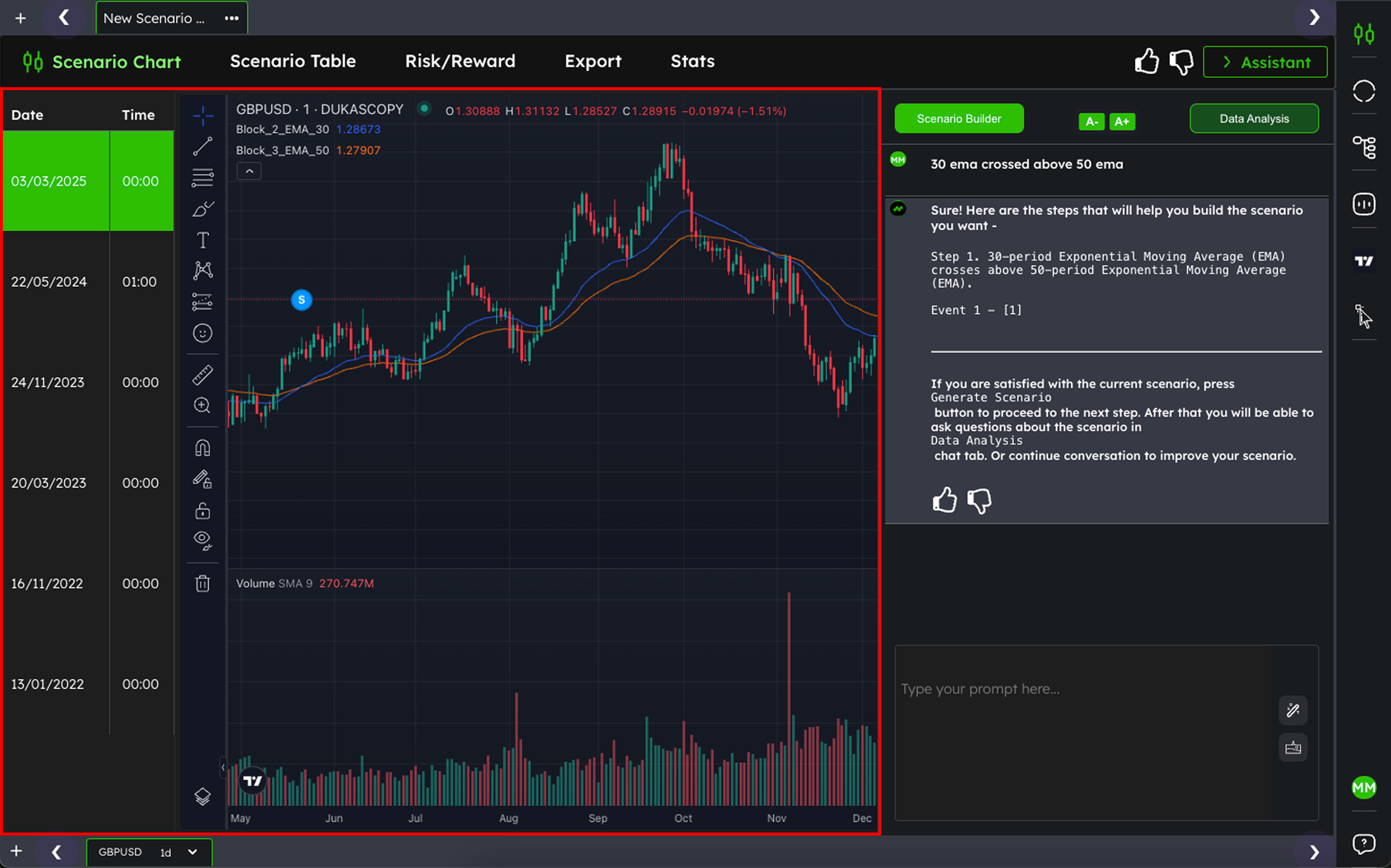
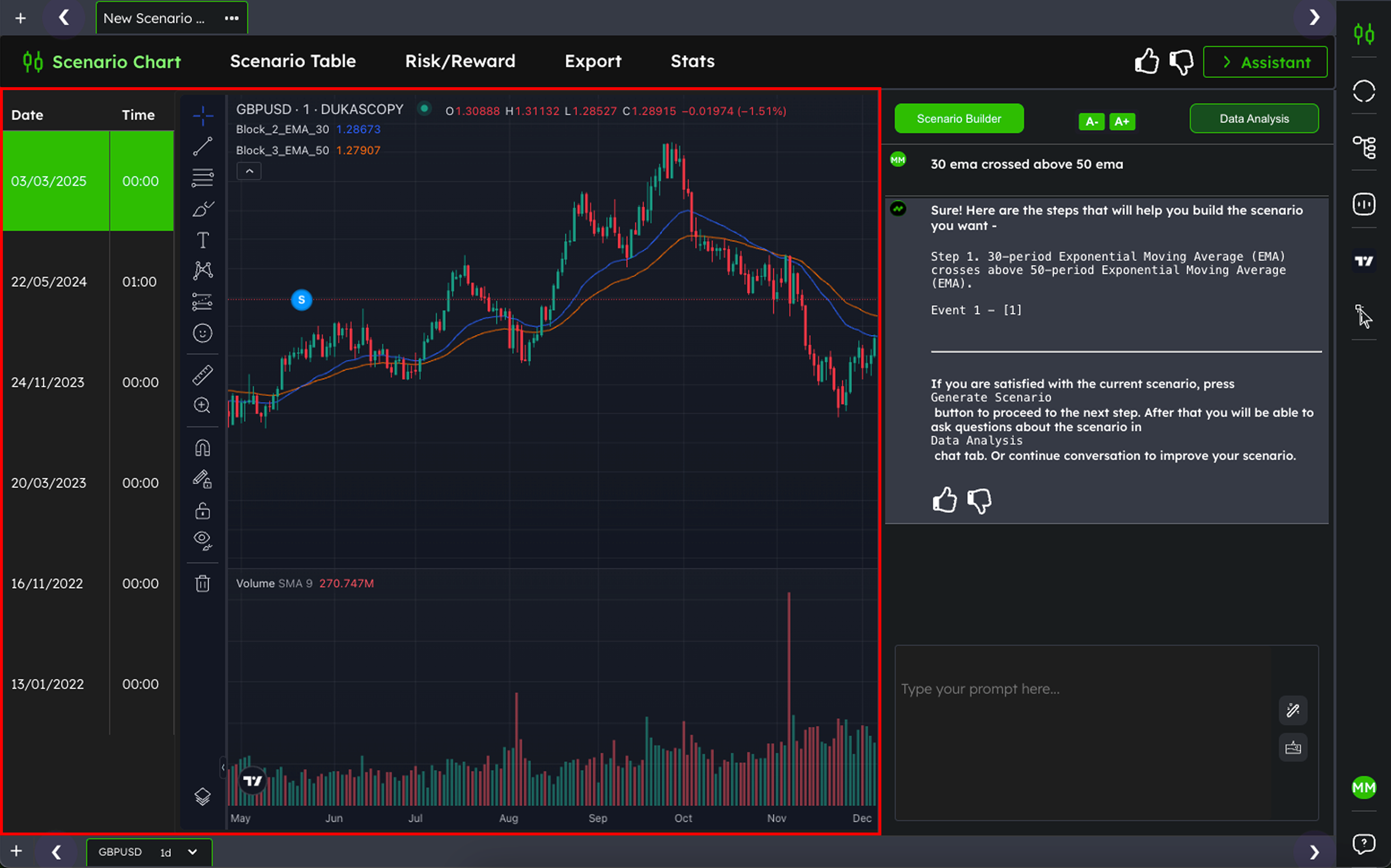
Chart Viewer
This area shows the historical price chart with all the matches for your scenario. You’ll be able to visually explore where your pattern occurred and inspect individual examples directly on the chart.
Learn more about the Chart Viewer
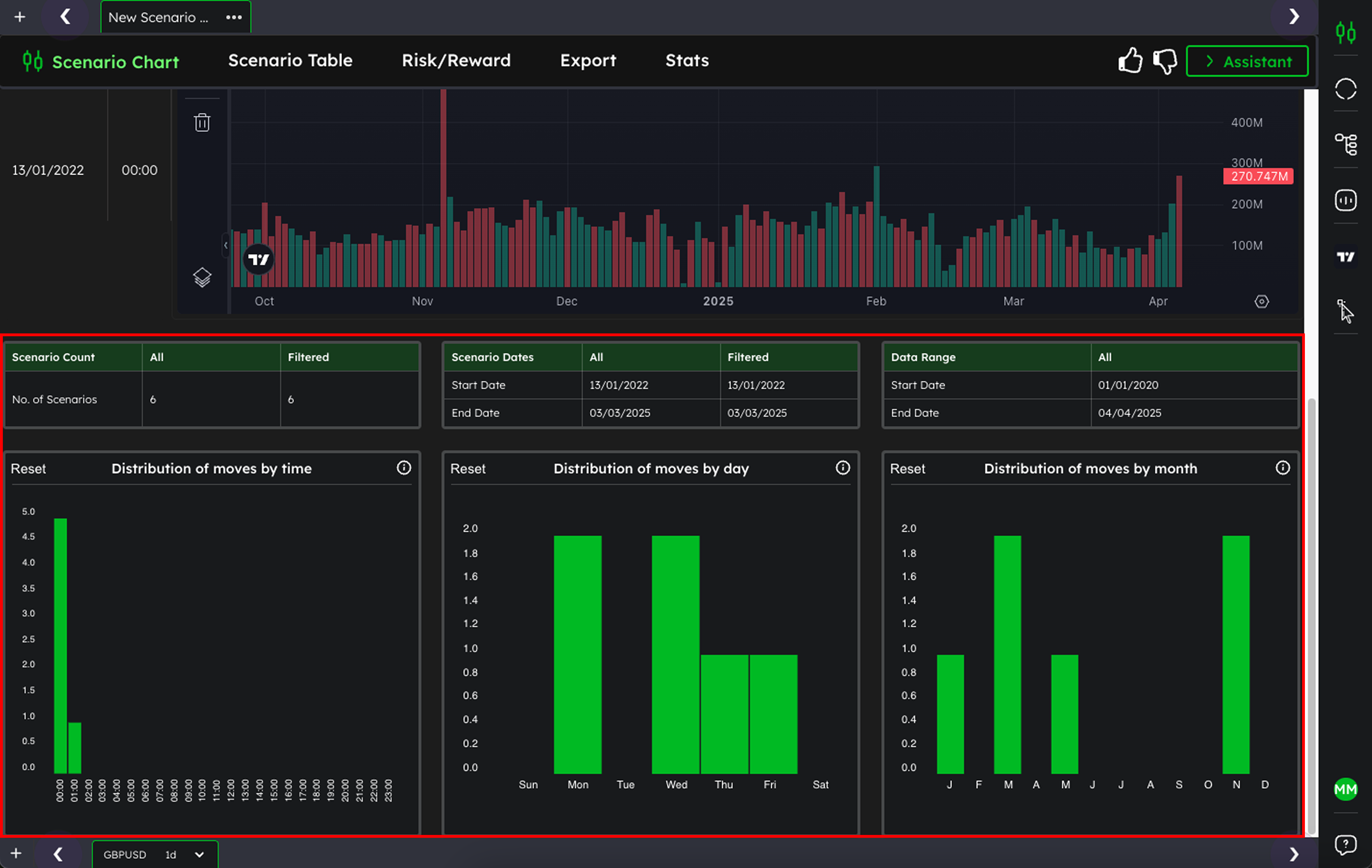
Scenario statistics
Scroll down below the chart or click stats at the top, you’ll see key stats related to your scenario — like the number of matches, date range, and the distribution of your true scenarios.
Learn more about Scenario Statistics
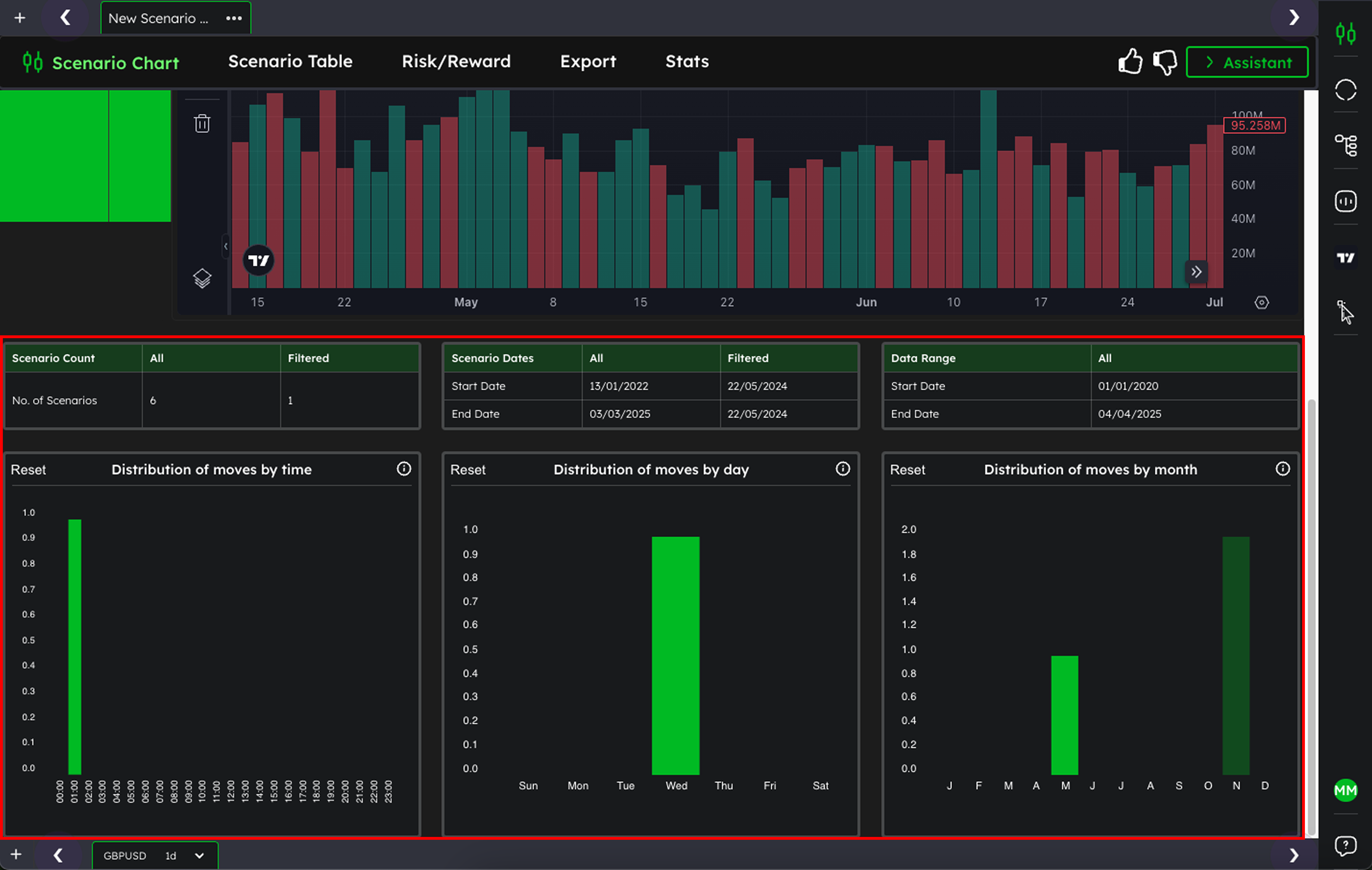
Filters and Export
Once a scenario is created, you can filter results by date, symbol, or range, and export the data for deeper analysis outside the platform.
Learn more about Filtering and Exporting
Each part of the workspace is designed to help you move quickly from idea to insight — without writing a single line of code.
Was this helpful?
Still need help? Ask the team