Managing your Scenario Tabs
Written By Max Muir
Last updated Over 1 year ago
Easily rename, delete, or share your saved scenarios in TradrLab. There are two Ways to Manage Scenarios
You can manage any scenario using either of these methods:
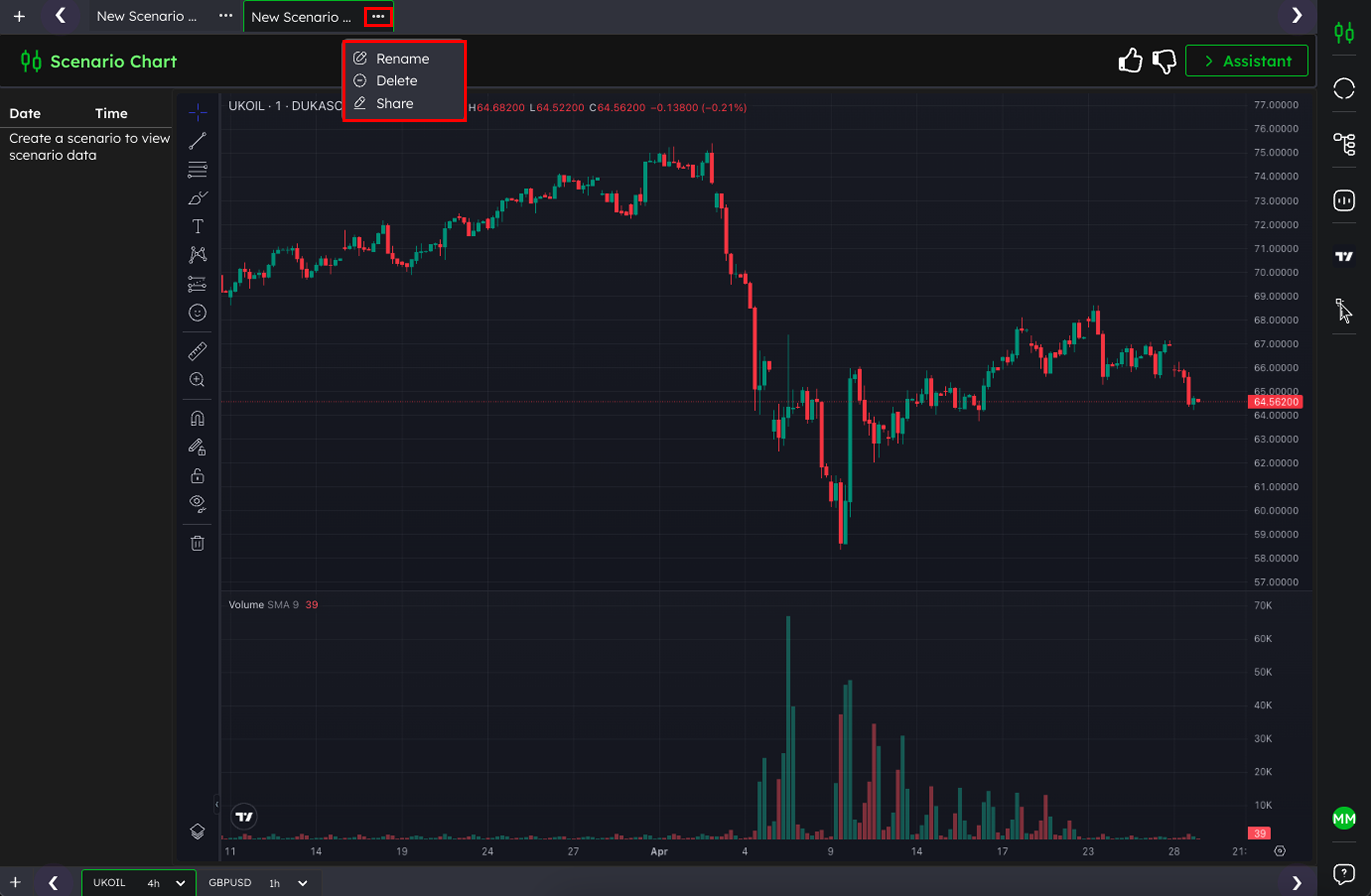
1️⃣ Using the Three Dots Menu
Go to the scenario tab (top bar of your workspace).
Click the three dots (⋯) next to the scenario name.
Select Rename, Delete, or Share from the dropdown.
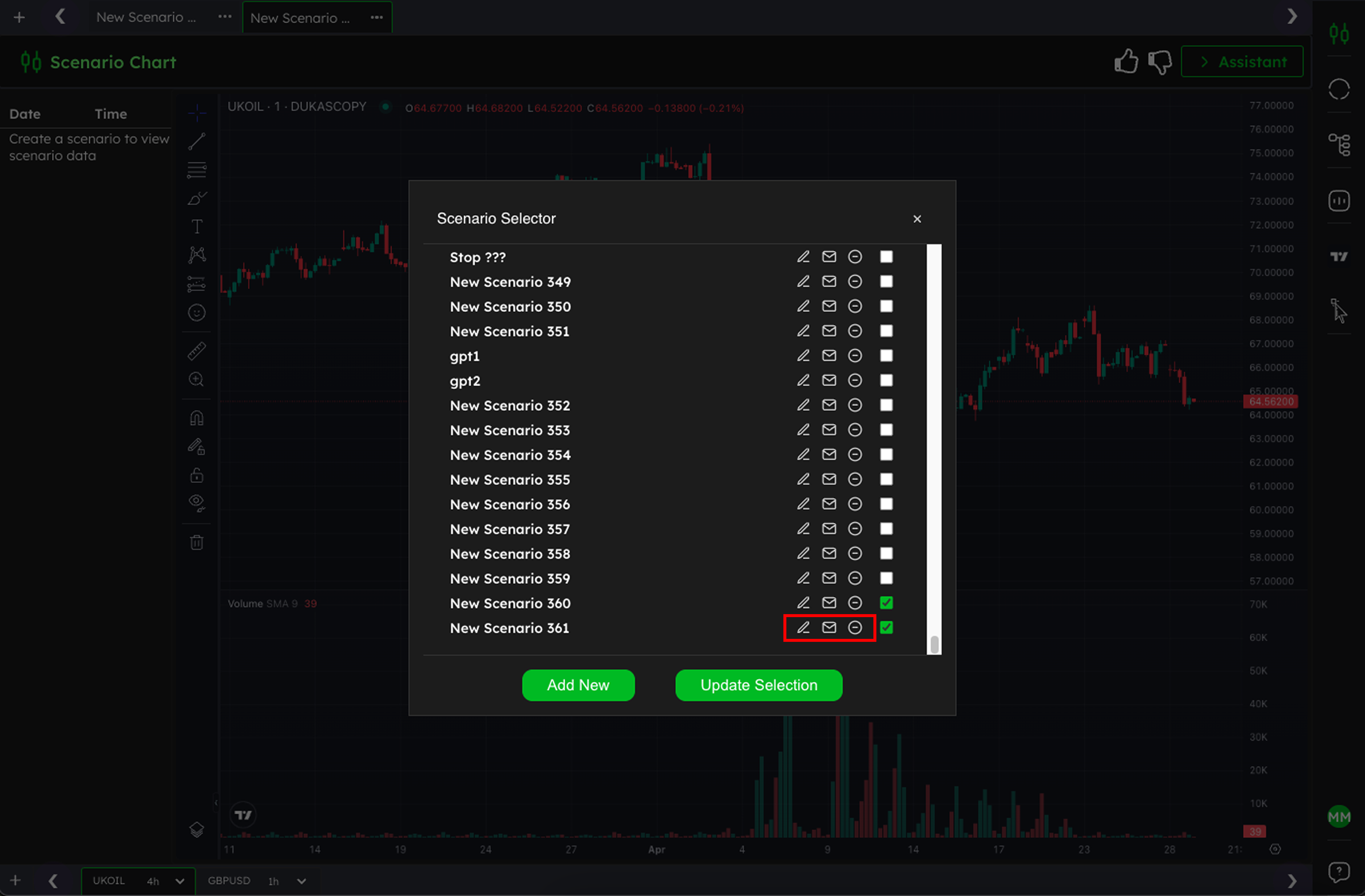
2️⃣ Using the Scenario Selector
Click the plus (+) button in the top left.
In the scenario selector popup, find your scenario.
Use the pencil icons to rename, share, or delete your scenario
✅ Tip
Keep your workspace tidy by regularly cleaning up old or unused scenarios and renaming them for easy identification.
🗂 How to Switch Between Scenario Tabs
Use the tabs at the top of your workspace to jump between different open scenarios.
Each tab keeps its own prompt, chart view, and stats.
❌ How to Remove a Scenario Tab (Without Deleting It)
Click the plus button (+) at the top left-hand corner of your workspace.
In the Scenario Selector popup, find the scenario you want to remove from the tabs.
Untick (untoggle) the checkbox next to that scenario.
Click Update Selection to apply the change — the tab will disappear, but the scenario remains saved.
✅ Tip: You can re-add the scenario anytime by reopening the Scenario Selector, ticking it again, and updating the selection.
Was this helpful?
Still need help? Ask the team