How to add new Symbol Tab
Written By Max Muir
Last updated Over 1 year ago
Follow these steps add a new Symbol Tab in TradrLab.
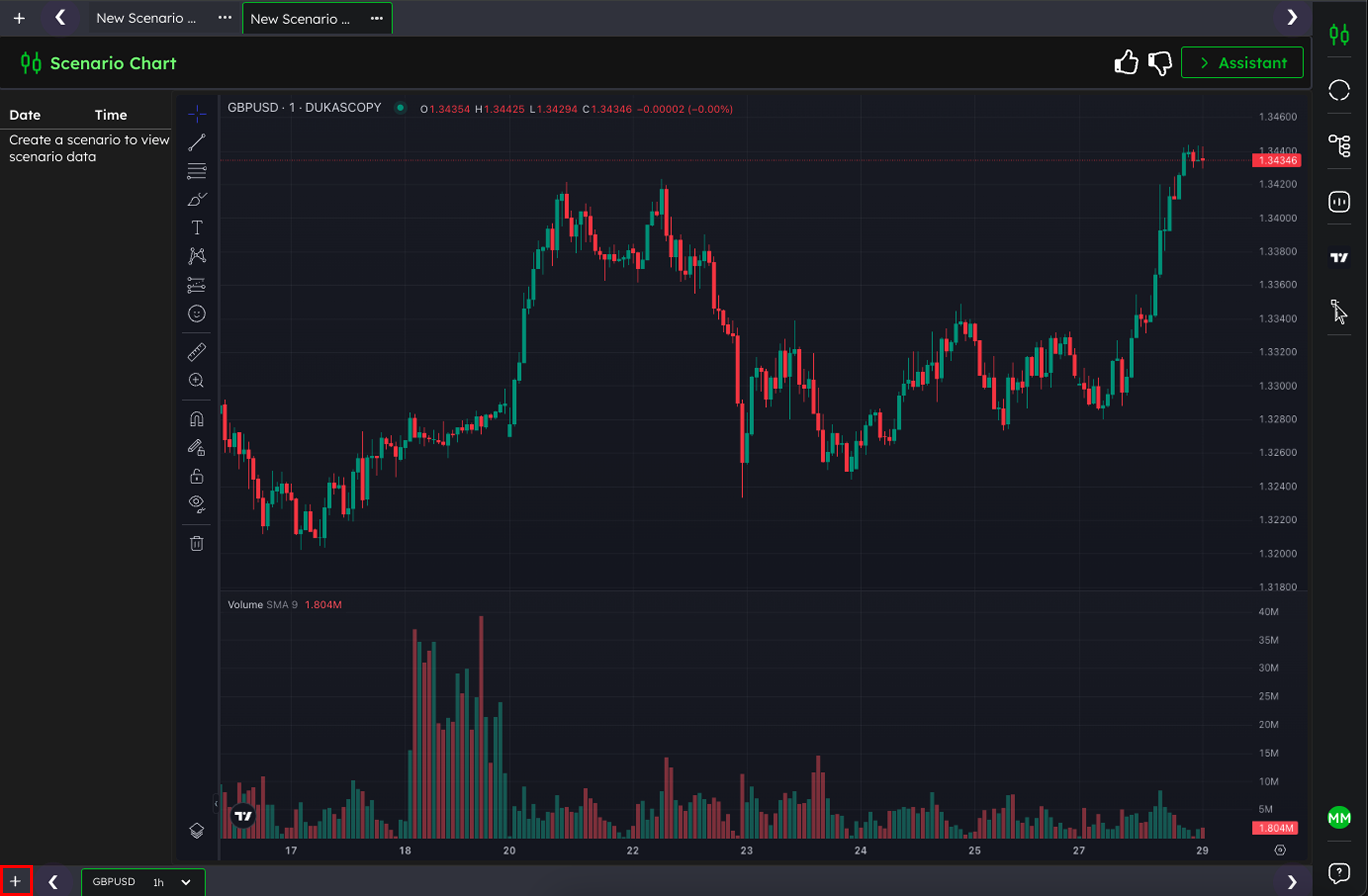
1️⃣ Click the + button Go to the bottom left corner of the screen → click the red-highlighted + button. (This opens the Symbol Selector.)
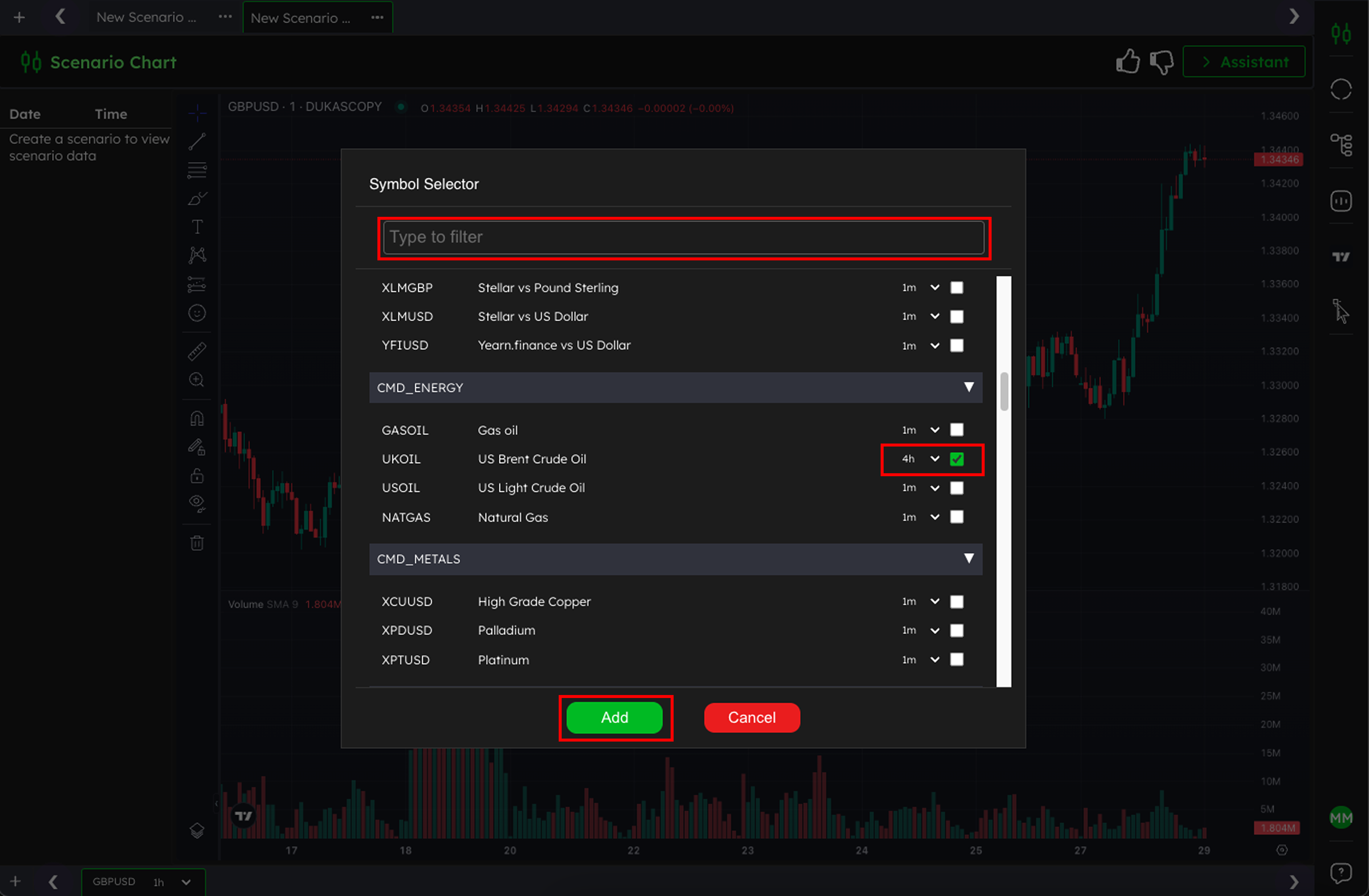
2️⃣ Search or browse for the symbol In the Symbol Selector window:
Use the “Type to filter” box to search by name or ticker,
Or scroll through the list and locate the symbol (e.g.,
UKOIL).
3️⃣ Select the timeframe Next to your chosen symbol, click the dropdown (e.g., 1m, 4h) → tick the desired timeframe checkbox (✅).
4️⃣ Click Add Once you’ve selected the symbol and timeframe, click the green Add button at the bottom.
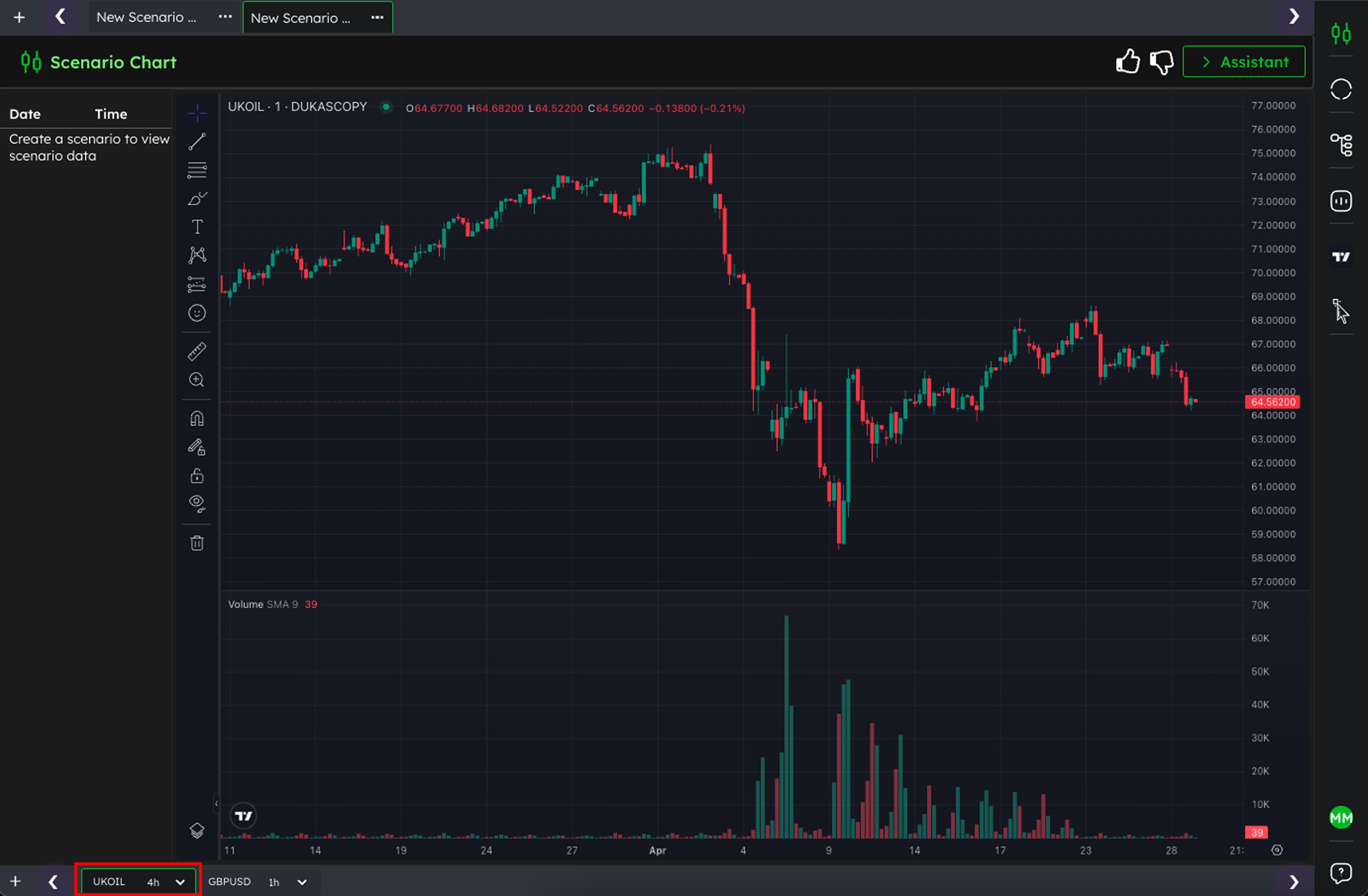
5️⃣ Switch between tabs Your new symbol tab will now appear along the bottom bar → you can click between tabs to switch charts.
Was this helpful?
Still need help? Ask the team